You finished writing your content, picked your images, and chose a cover color you love. Then the printed booklet showed up with the pages completely out of order. The back cover landed in the middle. Nothing lined up.
That kind of problem almost always comes down to the booklet layout. Specifically, how the pages were arranged in the file before printing. Most people focus on how their booklet looks and skip right past how it needs to be structured. But page order, margins, and binding choices all affect whether the final product comes out right or ends up in the recycling bin.
Key Takeaways
- Booklet layout controls how pages are sized, ordered, and positioned so they print and fold correctly.
- Every booklet page count must be a multiple of four because each folded sheet creates four pages.
- Submit your file in reader order (1, 2, 3, 4…) and let the printer handle imposition.
- Your binding method directly affects margin requirements, page count rules, and gutter width.
- Bleed, trim, and gutter space keep text and images from getting cut off or lost in the spine.
What Is Booklet Layout, and Why Does It Matter for Printing?
Booklet layout is the structural side of putting a booklet together. It covers page size, page order, margins, and how to organize the file so the printer can produce it correctly. Think of it as the blueprint that tells the printer where every page belongs on a physical sheet of paper.
Without a solid layout, pages might print out of sequence, text could get trimmed off, or images might land too close to the fold. A good booklet page layout prevents all of that before production even starts.
Booklet Layout vs. Booklet Design
On a related but separate note, booklet design is the creative work, including your font choice, placing photos, and making everything look good, whereas booklet layout is the structural framework underneath. It deals with page dimensions, gutter widths, page order, and file setup. Design is how your booklet looks. Layout is how your booklet works.
Why the Order of Pages for Booklet Printing Is Different Than You’d Expect
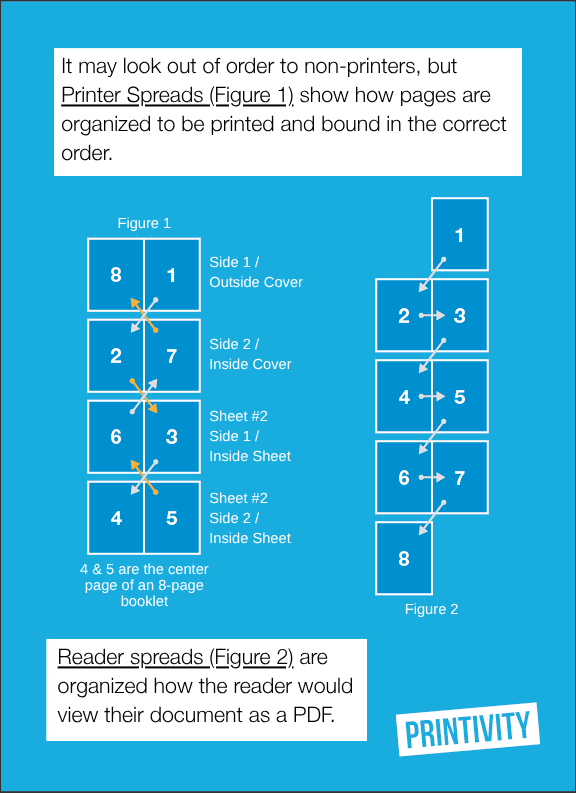
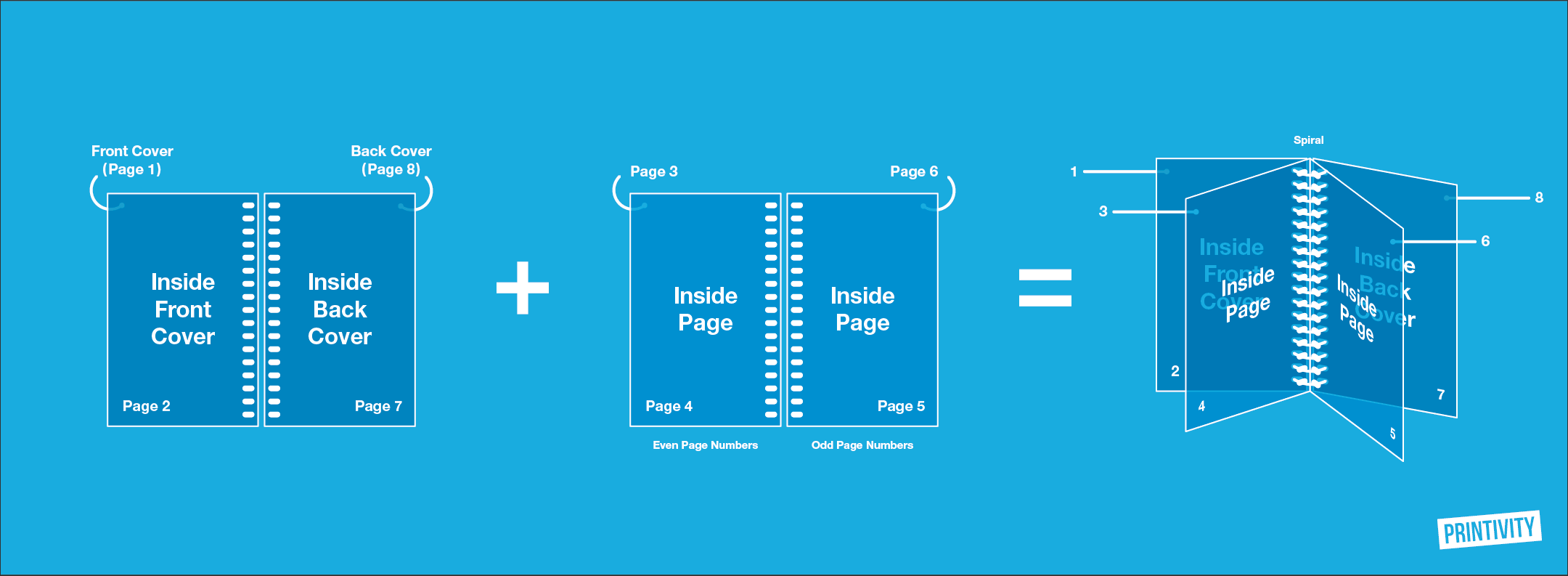
The page order for booklet printing doesn’t match the order you see on screen. During printing, pages get rearranged on press sheets so that when those sheets fold and trim, everything falls into the correct reading sequence.
In a simple 8-page booklet, page 8 and page 1 sit on the same side of the same sheet. Page 2 and page 7 share the other side. This rearrangement (called imposition) makes the final booklet read front to back in the right order. If you incorrectly set up pages in your file, you’re looking at unneeded costs and wasted time for a reprint.
How to Arrange Pages for Booklet Printing
Once you understand a few ground rules, figuring out how to order pages for a booklet is pretty straightforward.
Start With the Rule of Four
One folded sheet of paper creates four printable pages. That’s why every booklet page count needs to land on a multiple of four: 8, 12, 16, 20, 24, and so on. If your content doesn’t fill one of those numbers evenly, add pages until it does. Use the extras for a notes section, additional photos, or a table of contents.
One common mistake: forgetting that the front cover, inside front cover, inside back cover, and back cover all count toward the total. Leave those out and every page shifts.
Setting Up Your File in the Right Order
- Set each page at the finished trim size. If your booklet trims to 8.5” x 5.5”, every page in your document should match that size. Don’t set up an 8.5” x 11” document with two pages side by side.
- Place pages in reading order. Page 1 = front cover. Page 2 = inside front cover. Continue sequentially through to the back cover.
- Include blank pages. If the inside front cover has no content, leave it as a blank page in your PDF. Skipping it throws off the entire booklet page order.
- Export as a single-page PDF. Avoid “book fold” or “booklet” settings in Word, InDesign, or Canva. Those rearrange pages for home printing, not commercial printing.
- Let the printer handle imposition. Your printer uses specialized software to convert your reader-order file into the correct printer spreads. Trying to do this yourself almost always creates errors.
How Binding Affects Your Booklet Page Layout
Your binding choice shapes margins, page counts, and how the finished booklet opens and lays. Pick your binding early so your layout accounts for it from the start.
Saddle stitch booklets use staples through a folded spine. They work for up to about 144 pages, require multiples of four, and open relatively flat. They’re the go-to for programs, catalogs, and marketing pieces.
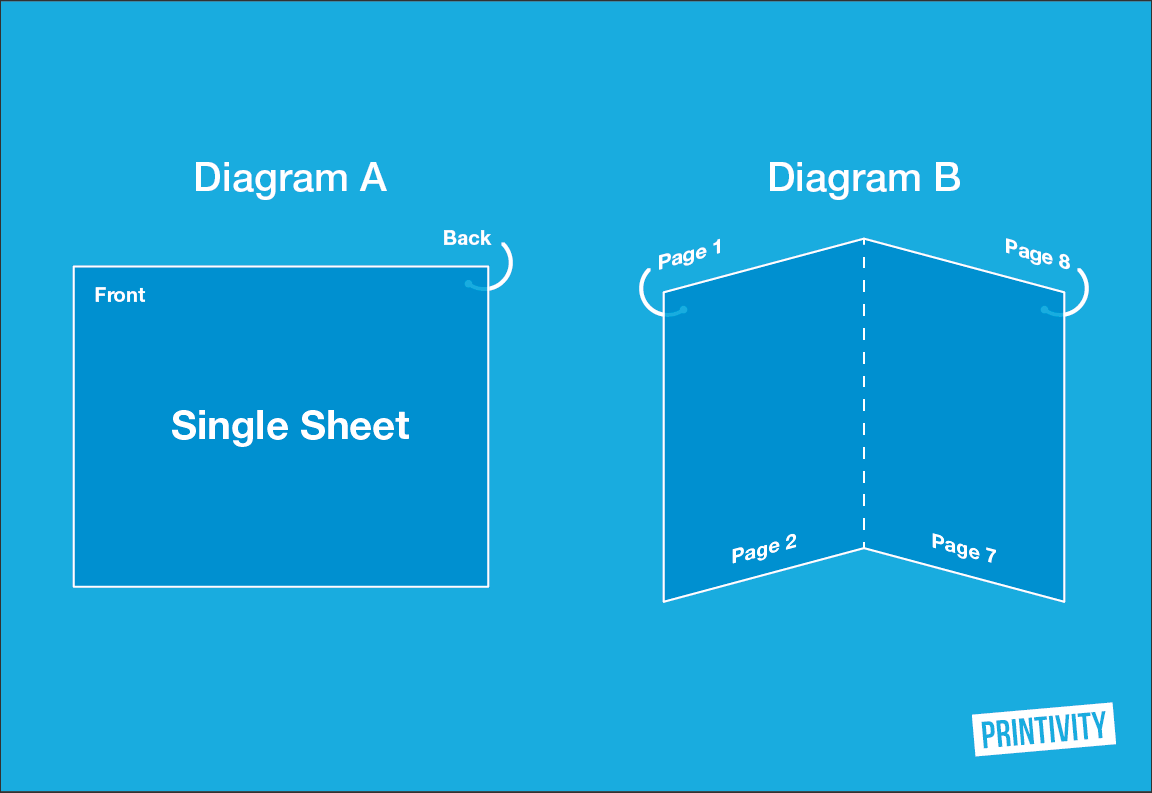
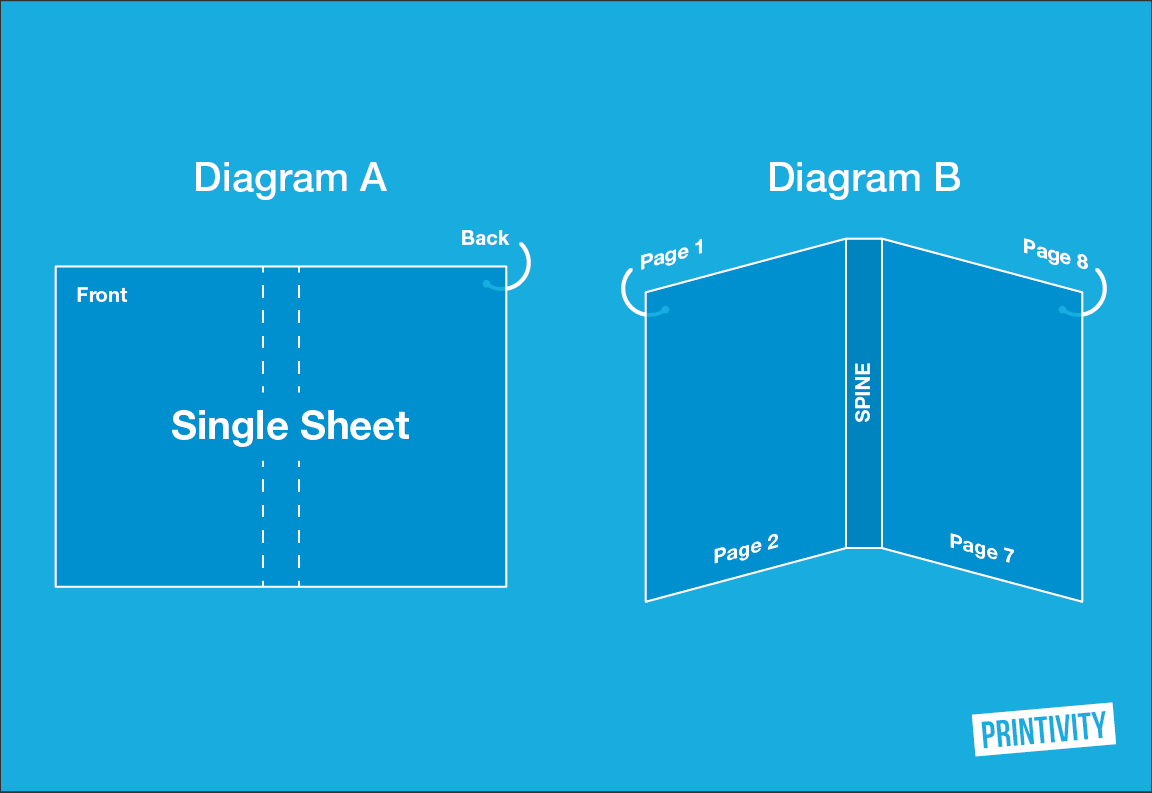
Perfect bound booklets use a glued spine, starting around 28 pages. They look more polished and book-like but don’t lay flat, so you’ll need a wider gutter to keep text readable near the spine.
Spiral bound booklet printing uses a coil through punched holes. Pages lay completely flat and even fold back on themselves, making spiral binding ideal for manuals and workbooks.
Common Booklet Layout Mistakes to Avoid
- Submitting printer spreads. Send single pages in reading order. Your printer’s imposition software does the rest.
- Counting sheets instead of pages. One folded sheet = four pages. Counting sheets will throw off your quote and your layout.
- Skipping bleed. Any image or color that touches the page edge needs to extend 0.125” past the trim line. Without bleed, you’ll see thin white strips along the edges.
- Ignoring the gutter. Text placed too close to the binding edge gets swallowed by the spine, especially on perfect bound booklets. Add extra margin on the inside edge of each page.
- Using Word’s book fold setting. That feature rearranges pages for home printers. Send that file to a commercial printer and the page order will come out wrong.
Skip the Guesswork and Let Printivity Handle It
Booklet layout doesn’t have to be complicated, but it does have to be right. Between page counts, margins, bleed, binding, and more, there are a lot of small details that affect the final product. And if any of them are off, you’ll see it in the finished booklet.
If you’d rather focus on your content and let someone else handle the technical setup, that’s exactly what we’re here for. Get an instant quote from Printivity to get your project moving, or contact us with questions about file setup or page arrangement. We’d rather help you get it right up front than fix it after the fact.
Frequently Asked Questions About Booklet Layout
What is booklet layout, and why does it matter for printing?
Booklet layout is how pages are sized, ordered, and arranged so they print, fold, and bind correctly. It matters because even a small ordering mistake can ruin an entire print run. Getting the layout right before you send your file saves time, money, and frustration.
What is the difference between booklet layout and booklet design?
Booklet design focuses on the creative elements—colors, fonts, images, and visual style. Booklet layout focuses on the structural setup—page order, dimensions, margins, and file organization. You need both for a professional result, but they solve different problems.
How should pages be arranged in a booklet layout for printing?
Arrange your pages in sequential reading order (1, 2, 3, 4…), starting with the front cover and ending with the back cover. Include blank pages where they belong. Export as a single-page PDF without any booklet or book fold settings applied. The printer will rearrange the pages into the correct print layout using imposition software.
What are the most common booklet layout mistakes to avoid?
The biggest mistakes include submitting printer spreads instead of single pages, counting sheets rather than pages, forgetting to include covers in the page count, skipping bleed, and placing text too close to the binding edge. Each of these can delay production or force a reprint.

Recent Posts
-
 Customer Highlight: How Wedding Venue Map Simplifies Wedding Planning
 -
 Making a Difference with Tiffany and The Gem Foundation
 -
 What Is Saddle Stitch Binding? A Quick Guide for Print Projects
 -
 Booklet Layout: How to Arrange and Order Pages for Printing
 -
 Guide to Choosing the Right Binding for Church Programs